Field guide / DayZ on Windows
How to join a modded DayZ server
A modded server needs the right Workshop items as well as the game. This guide follows Flarecall’s Windows preview workflow and explains what each step actually confirms.
1. Check Steam, DayZ and the launcher
Use Windows 10 or 11, 64-bit, with an installed copy of DayZ owned by the Steam account you are using. Open Steam online, finish game updates, and use the same Windows user for Steam and Flarecall. Keep enough free space on the drive that holds your Steam Workshop content; a download’s final installed size can differ from the transfer size.
If you have not installed Flarecall, use the preview installation notes first. Publisher signing is still pending, and the full Windows–Steam–DayZ acceptance test is in progress. The preview is intended for testing. It does not ask for your Steam password or Steam Guard code.
In Flarecall’s Settings, confirm the DayZ installation folder and Steam helper status. A custom Steam library may be on a different drive from Steam itself. Check the actual game location instead of assuming a default path. Close any existing DayZ session before starting another preparation operation.
2. Find the server you intend to join
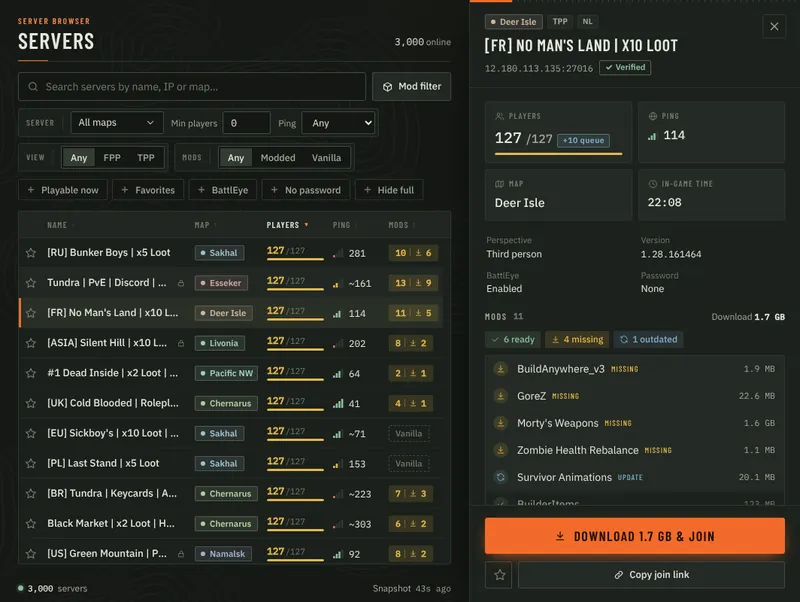
Open Servers and refresh the list. Search by server name or map, then open the server details. Check its address with the community’s own information if several servers share a similar name. A favourite is a convenient shortcut, but it does not guarantee that an address or mod list has stayed the same.
The current Flarecall catalog covers servers that had players when discovered. Empty servers are excluded. Player counts in the list are a snapshot, and a server can become empty or full between discovery and your join attempt. Use the live detail check for current information and your local ping measurement.
A password-protected server also requires the server’s password, supplied by its administrator. This is separate from your Steam login. A server can enforce its own access rules, capacity, version or whitelist; a launcher cannot override them.
3. Let Steam prepare the required Workshop mods
Select Join in the server details and follow the preparation progress. Flarecall queries the current server mod list before proceeding. It checks Steam’s item state, asks Steam to prepare missing or outdated items, checks the installation again and then prepares the links used for launch.
A folder on disk is not proof that a mod is ready: Steam may still be downloading or updating it. Likewise, a Workshop subscription tells Steam you want an item, but does not prove that its current download has completed. If the download size is unknown, wait for Steam’s progress rather than treating it as a zero-byte download.
Keep Steam running while preparation is active. Join, mod repair, removal and updates are coordinated so they do not modify the same installation at the same time. Cancelling Flarecall’s preparation stops its work and helper, but Steam may continue its own download queue.
4. Confirm the actual connection inside DayZ
When preparation completes, Flarecall requests game launch. A launch request, seeing the DayZ process and entering the server are different events. Flarecall can observe the game process; check inside DayZ that you reached the intended server. Allow legitimate first-run Steam or BattlEye prompts to complete.
For your first test, try an unmodded server and then a server with a small mod list. This helps separate a base-game problem from Workshop preparation. A running game does not prove that the server accepted the connection, and a launcher cannot eliminate server queues.
If joining stops before launch
An incomplete or unverified live mod list blocks launch. Do not work around that check by assuming a cached list is still correct. Refresh the details and retry later; if one server repeatedly fails while others work, ask its administrator to check the public query response and current mod list.
For paused downloads, outdated items or mod paths, use the DayZ Workshop troubleshooting guide. Record the exact error, launcher version, server address and Workshop item ID when reporting a reproducible problem. Do not share Steam credentials or private logs containing tokens.
Download the Windows preview and read the update guide, or compare the available launcher workflows.
Sources and scope
This guide describes Flarecall’s current implementation; it is not a completed end-to-end Windows acceptance report. Steam item state is documented in Valve’s Steam Workshop API reference. The Bohemia’s modding support announcement describes the game’s own launcher.